Quantower Guides
Quantower Bracket Orders: How to Attach a Stop and Target
A bracket order is an entry with a stop loss and a take profit attached. When one exit fills, the other is cancelled (OCO). Quantower can do this natively. Here is how, and where it stops.
Option 1
Quantower Order Entry panel
Built in- Tick Stop Loss and Take Profit, enter prices
- Server-side brackets on CQG and Rithmic
- Multiple SL/TP lines on CQG
Best for: occasional trades where you type the levels.
Option 2
Quantower chart trading
Built in- Quick trading toolbar on the chart
- SL and TP distance set in pips/ticks
- Order templates save qty, TIF and SL/TP
Best for: fixed-tick brackets from the chart.
Option 3
Local SL/TP strategy
Built in- For brokers without native brackets
- Up to 3 bracket tiers, optional trailing
- Runs only while Quantower is open
Best for: connections that lack server-side SL/TP.
Option 4
Nexus Chart Trader for Quantower
Lifetime licence- Stop by $, points, %, ticks, previous candle, swing or ATR
- Target by $, points, %, ticks, R multiple, ATR, swing or Multi TP
- Quantity sized from your dollar risk
Best for: the same bracket logic on every trade, set once. Product page
| Bracket need | Quantower native | Nexus Chart Trader |
|---|---|---|
| Stop and target on entry | Yes (Order Entry, chart toolbar) | Yes, on every panel entry |
| OCO between exits | Yes, server-side on CQG and Rithmic | Yes, legs kept sized to the position |
| Stop distance types | Price, or ticks/pips from the toolbar | $, points, %, ticks, previous candle, swing, ATR |
| Target as R multiple | Not found in the docs | RR mode up to 1:20 |
| Multiple targets | CQG multiple mode; Local SL/TP up to 3 tiers | Up to 3 targets, split by % |
| Size from dollar risk | Not found in the docs | AUTO quantity from $ risk |
Quantower facts from help.quantower.com, checked November 12, 2026. Support varies by connection.
How to place a bracket order in Quantower (native)
Open Order Entry
Or open the quick trading toolbar from the button at the top right of a chart.
Tick SL and TP
Tick Stop Loss and/or Take Profit and set the level. On the chart toolbar you set the distance.
Place the order
The confirmation shows both exit prices. When one exit fills, the other is cancelled.
To reuse a setup, right-click the Order Entry sidebar and choose Save order template. A template stores side, quantity, time in force and the SL/TP distance in ticks (Quantower blog).
Check your connection first
Quantower lists brackets as server-side on CQG (single and multiple) and Rithmic (single only). Other connections differ, and some have no native brackets at all (order types by connection). Where native brackets are missing, Quantower offers the Local SL/TP strategy, which lives inside the platform and is deleted if Quantower closes or the connection drops (Local SL/TP).
Multiple take profit targets
On CQG connections (including AMP), switch Brackets to Multiple mode and add one line per stop or target (Order Entry for CQG). On other connections, the Local SL/TP strategy supports up to 3 bracket tiers.
What it looks like in Nexus Chart Trader for Quantower
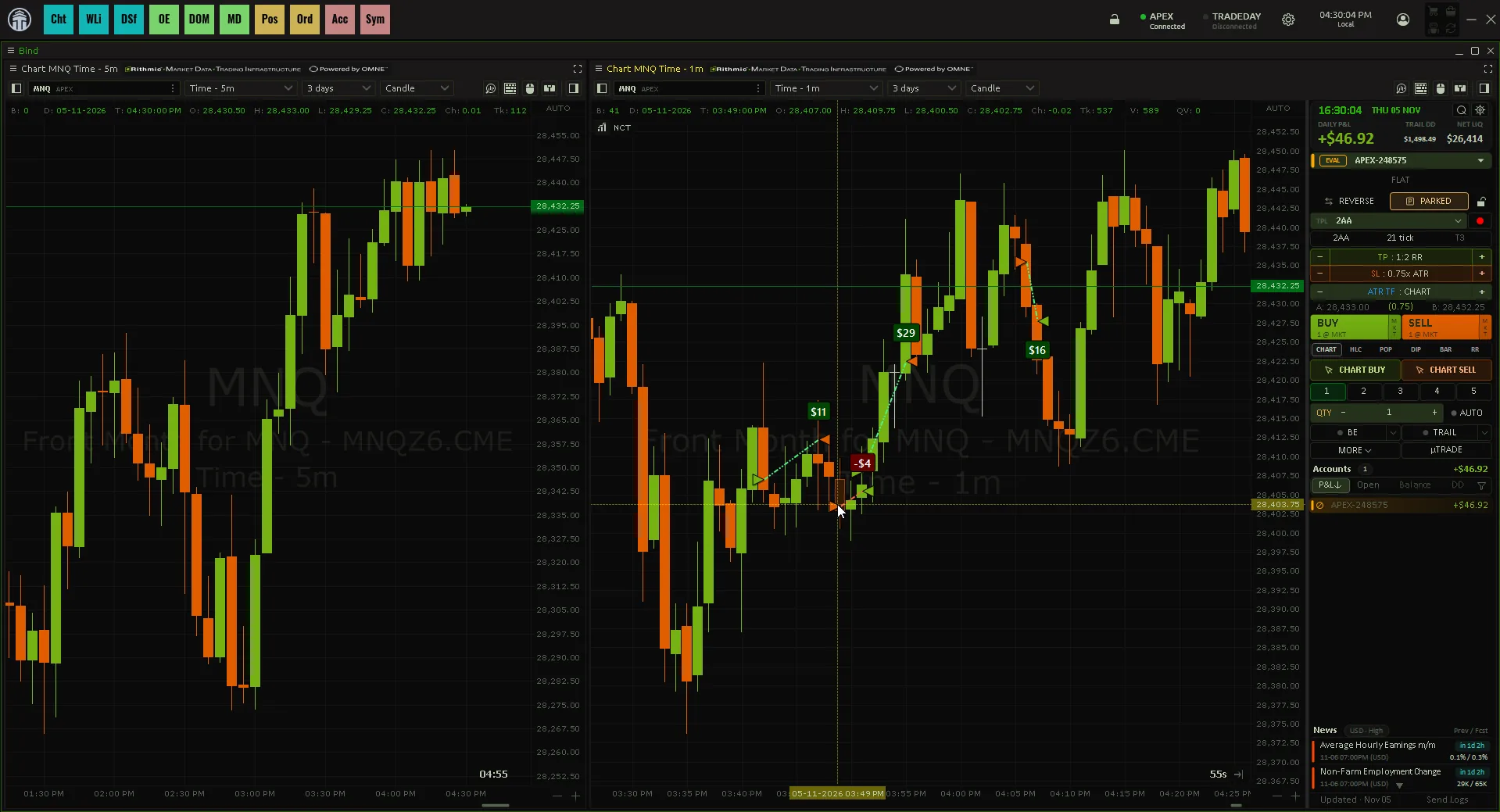
Things to notice:
- The stop and target are set before you click. The SL and TP steppers show the mode (for example TICKS SL or RR MODE). Click the value, then step it with + and −. Defaults are a 20 tick stop and a 40 tick target.
- The bracket goes out when the entry fills. The stop is a stop order and the target a limit order. They stay sized to the position as you add or scale out.
- Candle and volatility stops are priced at the fill. PREV places the stop beyond the previous candle(s), SWING beyond the last swing, ATR at a multiple of ATR on the timeframe you pick.
- You can still edit in Quantower. If you drag or cancel a leg in the DOM, the panel follows the change.
- Multi TP converts a live trade. Up to 3 targets, by default 2R, 4R and 6R taking 40%, 40% and 20%.
Which one should you pick?
You trade a few times a week with fixed tick brackets
Quantower order templates
Your connection has no native SL/TP
Quantower Local SL/TP
You want stops from candles, swings or ATR, and size from $ risk
Nexus Chart Trader
When not to buy an add-on
If a fixed tick stop and target fit your trading, Quantower's order templates already do the job for free. An add-on earns its keep when your stop moves with the market (candles, swings, volatility) and you want the quantity to follow it. Related guides: Quantower ATM strategy, auto breakeven and trailing and prop firm risk rules.
One click, full bracket
Nexus Chart Trader for Quantower places the stop and target for you on every entry, sized from the dollars you want to risk.
See Nexus Chart Trader for QuantowerNexus Indicator
Published by Nexus Indicator. Nexus sells Nexus Chart Trader for Quantower, which this article mentions. For product, licensing, or setup questions, contact support.